
Glary Utilities
Contact Us Partners
 
Home Purchase
Product Info
Testimonials
It will tell you what what is safe and unsafe and if it doesn't know you can look it up. You can also start and stop processes easily. Incredibly user friendly and easy to use. After you have stopped something from starting up it will stay in your startup menu until you delete it. You can also comment on programs for other users. It will also tell you if it is necessary to your systems start up, user's choice, or not necessary. As another bonus you can add programs you want to start up at startup.

judtaylor10 - download.com
Awards


Save your time by getting rid of all those programs that load at start-up.
Quick Startup

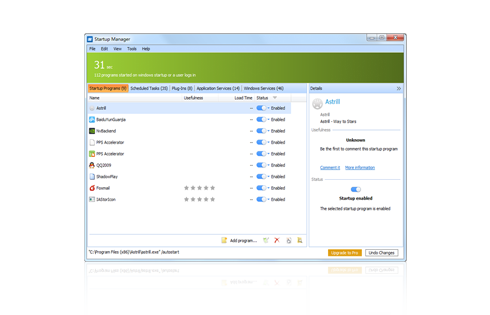
Browse all startup entries in an elegant list view.
Security risk rating for startup entries.
Get detailed information about individual startup entries.
Add, edit or delete startup entries
Simple and User friendly interface

When you turn on your computer certain applications, drivers, and services are automatically started at the beginning of each Windows session. The information that tells Windows to automatically start these items can be located in a number of places, ranging from a program group on your Start Menu, to certain initialization files that are executed when Windows starts, to one of many places in the system registry. The StartUp manager tool lets you centrally manage all of these items using one single interface. Using the StartUp manager you can easily add, remove, edit, disable, and enable any and all of these "startup items" in order to keep your system's boot-up process as fast and efficient as possible.

How do I find out if a program that starts automatically is necessary?

When you select a startup entry in the list, StartUp Manager displays detailed information on the program in the Details box at the bottom of the window. You can easily determine whether or not you wish to have the program started on the basis of the Product name and Company. If you have never heard of the company or the product, then the entry is probably not needed.You can also find it's more information from internet ,to do this,right click your mouse and select 'Search Google' on the popup menu.

Deactivating and deleting entries

Unmark the check box in front of an entry to disable it, and the program will no longer be started the next time you start Windows. In this way, you can find out for certain whether the entry is needed. If something doesn't work properly the next time you start Windows, all you have to do is select the check box again.

If you are certain that you no longer need an entry, you can remove it from the list entirely by clicking 'Delete this entry'.

Adding a new startup entry

If you wish to add a program to one of the startup folders yourself, click 'Add program...'.

Enter the name of the desired application in the dialog and enter the directory path of the program file in the Path/Command Line box. You can use the Find button to help you find the file.

You may also edit any of the existing listed items in order to move them from one location to another, change their program description, or update the command line that is being used to start the item.

System Requirements

Quick Startup is able to adapt to differing Windows versions and supports the following Windows releases: Windows 98, ME, 2000, 2003, XP, NT and Vista.The 64-bit versions of Windows XP/Vista are not supported.

Minimal system configuration

  • Graphics mode 800x600 with 16-bit colors
  • 20 MB free hard disk space at least
  • Intel Pentium or AMD K5 processor with 133 MHz
  • 32 MB RAM

Recommended system configuration

  • Graphics mode 1024x768 with 32-bit color
  • 30 MB or more free hard disk space
  • Intel Pentium 3/4 or AMD Athlon processor with 500 or above MHz
  • 128 MB RAM or more
  • Internet access
100% safe and 100% free
Current Version: 2.3
File Size: 1.15MB
Release Date: Nov. 4, 2007
Operating System: Designed for Windows 98, ME, NT, 2000, XP, 2003 and Vista?

Download Mirror


Screenshots


Upgrade to Glary Utilities PRO and Get All Benefits! 30 day money back guarantee - No questions asked. You've got nothing to lose.

Why upgrade to Glary Utilities PRO

More powerful utilities, such as disk cleaner, file shreder, privacy protector and more
Free reference files update
Enhanced system fixing, optimizing and more
Free 24x7 Technical Support
Consent for commercial use

Price: $39.95


About Us | Press Room © 2005-2008 Glarysoft Ltd. All Rights Reserved Privacy Policy | Legal Notice